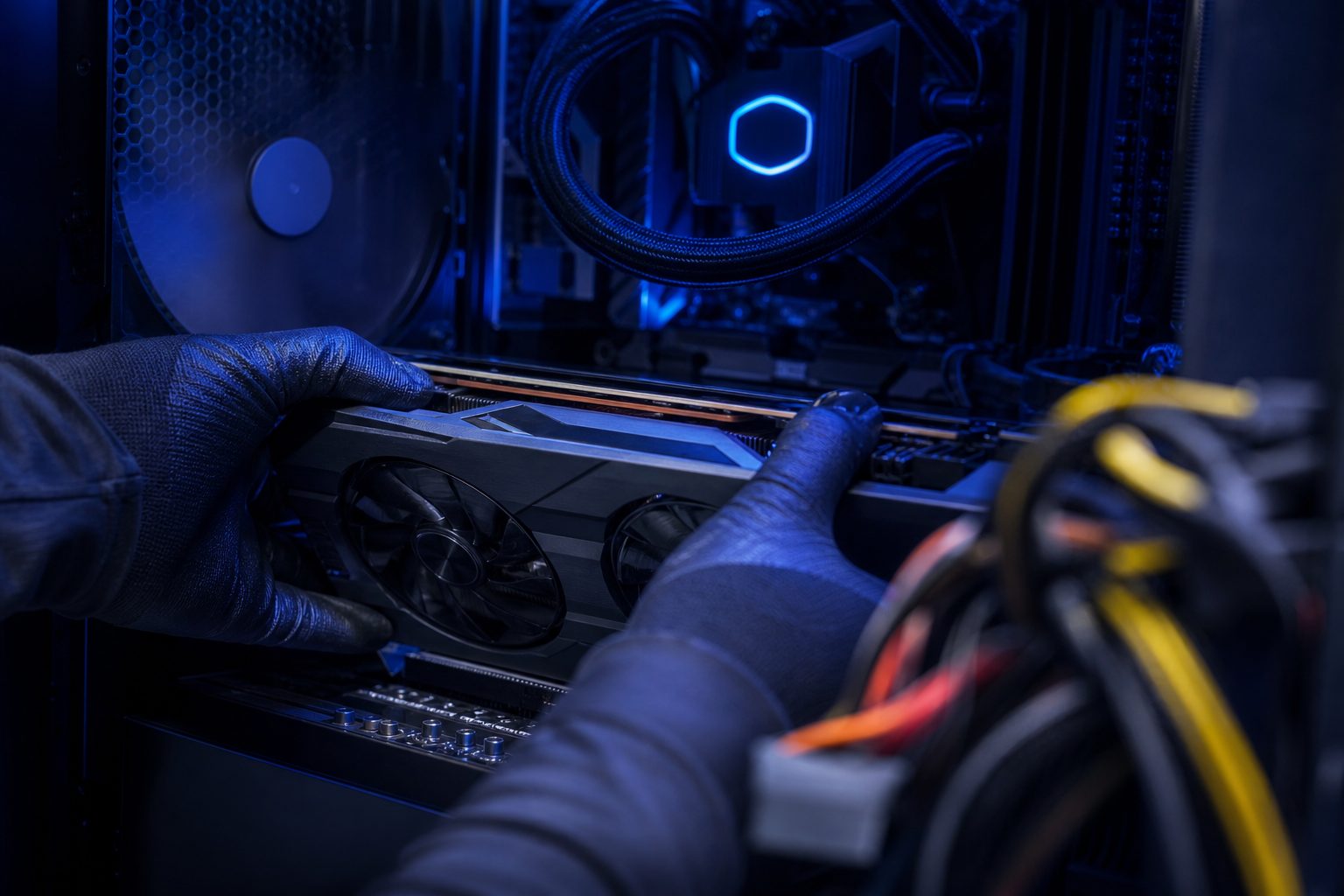
Game Crashes After Driver Update: Restoring PC Stability
Experiencing game crashes after driver update can be incredibly frustrating. One moment you are enjoying your favorite title, and the next, your system freezes or your game abruptly closes, often right after installing new graphics or other hardware drivers. This common issue can leave many PC users wondering how to restore their system’s stability and get back to uninterrupted gameplay.
Fortunately, there are proven methods to diagnose and resolve these post-update problems. This guide will walk through understanding why these crashes occur and, critically, how to perform a driver rollback to restore your PC to a stable state, along with other essential troubleshooting steps.
Understanding Why Game Crashes After Driver Update Occur
When a game crashes after a driver update, it often points to an incompatibility or a bug within the newly installed driver. While driver updates are generally meant to improve performance and fix issues, sometimes they can introduce new problems.
Several factors can contribute to these stability issues. Identifying the root cause is the first step toward a lasting solution for game crashes after driver update.
Common Causes of Post-Update Instability
A new driver might not be fully compatible with your specific hardware configuration or operating system version. This can lead to conflicts that manifest as crashes or performance drops. Sometimes, a driver update can overwrite essential system files incorrectly or leave remnants of old drivers that cause conflicts.
- Incompatible Driver Version: The new driver may not be optimized for your specific GPU or other hardware.
- Software Conflicts: The updated driver might clash with other installed software or system processes.
- Corrupted Installation: The driver update process itself could have been interrupted, leading to a corrupted installation.
- Early Release Bugs: Newly released drivers sometimes contain bugs that are later patched in subsequent updates.
Identifying the Culprit Driver
Pinpointing which driver caused the problem is crucial. If the crashes started immediately after a specific update, that driver is the most likely suspect. Checking the Windows Event Viewer can offer valuable clues.
The Event Viewer logs system events, including errors and crashes, which can help identify the problematic driver or application. Look for critical errors around the time your game started crashing.
The Essential Solution: Driver Rollback
The most direct and effective solution for game crashes after driver update is often a driver rollback. This process reverts your driver to its previous, stable version, effectively undoing the problematic update.
A driver rollback is a built-in Windows feature designed to help users recover from driver-related issues without needing to reinstall the operating system.
Preparing for a Driver Rollback
Before initiating a driver rollback, it is wise to create a system restore point. This provides an additional safety net, allowing you to revert your entire system to a previous state if something goes wrong during the rollback process. Although driver rollback is generally safe, having a backup is always recommended.
How to Perform a Graphics Driver Rollback (Windows)
Graphics drivers are the most common cause of game crashes after driver update. Rolling back your graphics driver is a straightforward process within Windows Device Manager.
Rolling Back Other Drivers (e.g., Audio, Chipset)
While graphics drivers are common culprits, other drivers, such as audio or chipset drivers, can also cause instability leading to game crashes after driver update. The process for rolling back these drivers is identical to that of graphics drivers.
Simply navigate to the relevant category in Device Manager, locate the specific device, open its properties, and look for the ‘Roll Back Driver’ option in the ‘Driver’ tab.
Beyond Rollback: Stabilizing Your Gaming PC
Sometimes, a simple driver rollback might not fully resolve the issue, or the option might not be available. In such cases, other troubleshooting steps become necessary to stabilize your system and prevent further game crashes after driver update.
Clean Driver Reinstallation
If a driver rollback is not possible or effective, a clean reinstallation of the driver is the next step. This involves completely uninstalling the current driver before installing a fresh version. Tools like Display Driver Uninstaller (DDU) are highly recommended for graphics drivers, ensuring all remnants are removed.
- Download DDU: Obtain the latest version of Display Driver Uninstaller.
- Boot into Safe Mode: Run DDU in Windows Safe Mode for optimal results.
- Clean and Restart: Use DDU to clean uninstall the problematic driver and restart.
- Install Fresh Driver: Download the desired driver version (either the latest stable or an older, known-good one) from the manufacturer’s website and install it.
System Restore Points
A system restore point reverts your entire operating system to a previous state, including drivers, installed programs, and system settings. This is a powerful tool if multiple updates or changes have led to widespread instability.
To use System Restore, search for ‘Create a restore point’ in the Windows search bar, then click ‘System Restore…’ and follow the prompts to choose a restore point.
Checking Game File Integrity
Sometimes, the issue isn’t directly with the driver but with corrupted game files that were perhaps affected by the system instability. Verifying the integrity of game files through platforms like Steam, Epic Games Launcher, or GOG Galaxy can often fix these localized issues.
Monitoring System Performance
After performing any fixes, monitor your system’s performance, especially CPU, GPU, and RAM usage, along with temperatures. Tools like MSI Afterburner or HWMonitor can provide real-time data. Unusually high temperatures or resource usage can indicate underlying problems contributing to game crashes after driver update.
Preventing Future Driver-Related Crashes
While troubleshooting is essential, preventing future game crashes after driver update is even better. Adopting careful update practices can save significant time and frustration.
Research Before Updating
Before installing any new driver, especially for graphics cards, check online forums and official driver release notes. Look for reports of stability issues or performance regressions from other users with similar hardware. This proactive step can help avoid known problematic updates.
Staggered Updates and Backup Strategies
Consider waiting a week or two after a major driver release before updating, allowing early adopters to identify any critical bugs. Always create a system restore point before installing new drivers. This ensures you have a quick recovery option if the new driver causes issues, including game crashes after driver update.
Bottom line
Encountering game crashes after driver update is a common issue for PC gamers, but it is not insurmountable. Understanding the causes and knowing how to perform a driver rollback are crucial skills for maintaining PC stability.
By following the steps outlined in this guide, you can effectively troubleshoot and resolve most driver-related game crashes. Remember to practice preventive measures, such as researching updates and creating restore points, to ensure a smooth and enjoyable gaming experience. For more insights into your PC’s gaming capabilities and potential upgrades, visit PCProfile for detailed compatibility checks and performance data.
Frequently asked questions
What does a driver rollback do?
A driver rollback reverts a specific hardware driver on your computer to its previously installed version. This is useful when a new driver update causes issues like system instability, performance problems, or game crashes after driver update, allowing you to return to a stable state.
Why do new drivers sometimes cause game crashes?
New drivers can cause game crashes due to several reasons, including incompatibility with specific hardware configurations, bugs in the driver software itself, conflicts with existing system software, or corrupted installation processes. These issues can disrupt the smooth operation of games.
Is driver rollback safe for my PC?
Yes, driver rollback is a generally safe and built-in Windows feature designed for troubleshooting. It aims to restore system stability without causing further damage. However, it is always recommended to create a system restore point beforehand as an extra precaution.
What if the 'Roll Back Driver' button is grayed out?
If the 'Roll Back Driver' button is grayed out, it means Windows does not have a previous driver version stored to revert to. In this situation, you would need to consider a clean driver reinstallation using tools like DDU or restoring your system to a previous restore point.
How can I prevent game crashes after driver updates in the future?
To prevent future game crashes after driver update, research new driver releases for reported issues, consider waiting a short period after release before updating, and always create a system restore point before installing any major driver update. Regularly backing up your system can also help.
What is Display Driver Uninstaller (DDU) and when should I use it?
Display Driver Uninstaller (DDU) is a utility that helps completely remove graphics card drivers and their remnants from your system. It is recommended for a clean driver reinstallation when a driver rollback is not possible, or if you are experiencing persistent issues like game crashes after driver update that a simple rollback cannot fix.
Can audio or chipset drivers also cause game crashes?
While graphics drivers are the most common cause, audio or chipset drivers can indeed cause system instability that leads to game crashes. Issues with these drivers can affect system resources or communication between hardware components, manifesting as crashes. Rolling back these drivers follows a similar process to graphics drivers.
Should I always update my drivers immediately when a new version is released?
It is generally not recommended to update drivers immediately upon release. Waiting a week or two allows other users to identify and report potential bugs or compatibility issues. This approach helps ensure you install a more stable and thoroughly tested driver version, reducing the risk of game crashes after driver update.
More in Driver Issues
A seamless gaming or computing experience often relies on perfectly functioning graphics drivers. However, over time, old or corrupted driver files can.
To ensure peak performance and stability for your PC, it is crucial to regularly update GPU drivers. Outdated graphics drivers can lead…