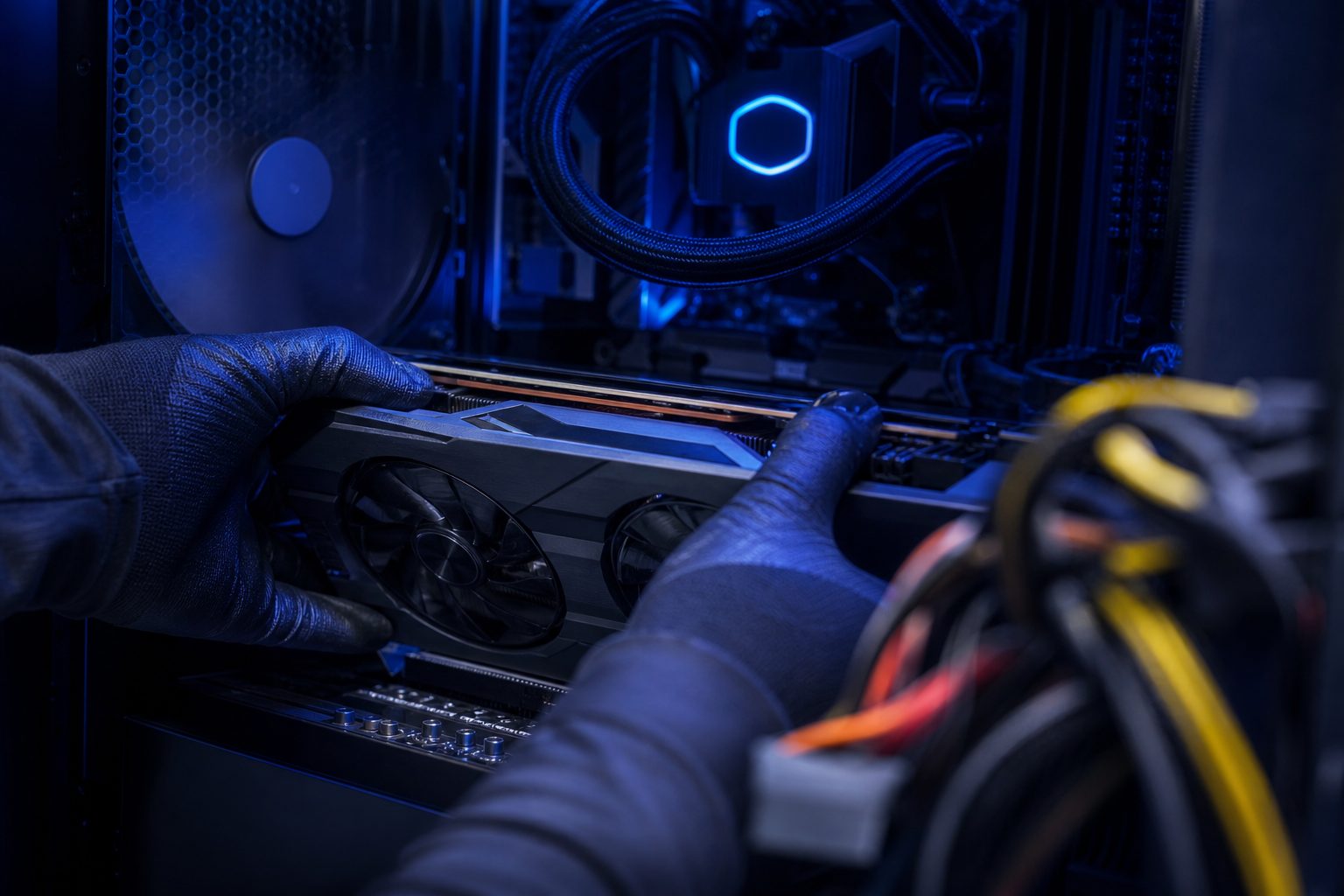
Update GPU Drivers: A Comprehensive Guide for Optimal PC Performance
To ensure peak performance and stability for your PC, it is crucial to regularly update GPU drivers. Outdated graphics drivers can lead to performance bottlenecks, compatibility issues, and even system crashes, especially when playing demanding games.
This guide provides a detailed, step-by-step walkthrough for updating drivers across the three major graphics card manufacturers: NVIDIA, AMD, and Intel. Following these instructions will help maintain your system’s health and unlock the full potential of your hardware.
Why Updating Graphics Drivers Matters for Your PC
Graphics processing unit (GPU) drivers are critical software components that allow your operating system and games to communicate effectively with your graphics card. These drivers bridge the gap between hardware and software, translating commands into actions the GPU understands.
Manufacturers frequently release new driver versions to introduce performance optimizations, fix bugs, add support for new games, and enhance overall system stability. Regular updates are particularly important for gamers seeking the best frame rates and visual fidelity.
Essential Preparations Before You Update GPU Drivers
Before initiating any driver installation, a few preparatory steps can prevent potential issues. Taking these precautions ensures a smoother update process and minimizes the risk of system instability.
It is always recommended to create a system restore point. This allows you to revert your system to its previous state if an unexpected problem arises during or after the driver installation.
Identify Your Current Graphics Card
Knowing your exact GPU model is the first step. This information is crucial for downloading the correct drivers.
- Press
Windows Key + R, typedxdiag, and press Enter. Navigate to the ‘Display’ tab. - Alternatively, open Device Manager (search for it in the Start Menu) and expand ‘Display adapters’.
- Note down the manufacturer (NVIDIA, AMD, Intel) and the specific model name.
Download the Correct Drivers
Only download drivers directly from the official manufacturer’s website. Third-party sites may offer outdated or malicious software.
Ensure you select the correct operating system version (e.g., Windows 10 64-bit, Windows 11) and your specific GPU model.
How to Perform an NVIDIA Driver Update
NVIDIA users have two primary methods to update their drivers: through GeForce Experience or by manual download. Both methods are effective for an NVIDIA driver update.
For optimal gaming performance and features, keeping your NVIDIA drivers current is essential. This section details both approaches.
Method 1: Using NVIDIA GeForce Experience
GeForce Experience is NVIDIA’s companion application that simplifies driver management and game optimization.
- Step 1: Open GeForce Experience. Launch the application from your desktop or Start Menu.
- Step 2: Navigate to the Drivers Tab. Click on the “Drivers” tab located at the top of the window.
- Step 3: Check for Updates. GeForce Experience will automatically check for new drivers. If available, a “Download” button will appear.
- Step 4: Download and Install. Click “Download,” then choose between “Express Installation” (recommended for most users) or “Custom Installation” for more control. Follow the on-screen prompts.
- Step 5: Restart Your PC. A restart is often required to finalize the NVIDIA driver update.
Method 2: Manual NVIDIA Driver Update
If you prefer a clean installation or do not use GeForce Experience, manual download is straightforward.
- Step 1: Visit NVIDIA’s Driver Download Page. Go to nvidia.com/drivers.
- Step 2: Select Your GPU. Use the dropdown menus to select your product type, series, product, and operating system.
- Step 3: Search and Download. Click “Search,” then “Download” for the latest recommended driver.
- Step 4: Run the Installer. Locate the downloaded executable file and run it.
- Step 5: Choose Installation Type. Select “Custom (Advanced)” for a clean installation (check the “Perform a clean installation” box) or “Express” for a standard update.
- Step 6: Follow Prompts and Restart. Complete the installation and restart your computer when prompted.
Performing an AMD Driver Update
AMD provides its Radeon Software Adrenalin Edition for managing drivers and graphics settings. This software streamlines the AMD driver update process.
Keeping AMD drivers updated ensures compatibility with the latest games and optimal performance for your Radeon graphics card.
Method 1: Using AMD Radeon Software Adrenalin Edition
This is the easiest way to keep your AMD drivers current.
- Step 1: Open Radeon Software. Right-click on your desktop and select “AMD Radeon Software” or find it in the Start Menu.
- Step 2: Check for Updates. Click the gear icon (Settings) in the top right corner, then navigate to the “System” tab. Look for “Check for Updates” under the “Software” section.
- Step 3: Download and Install. If an update is available, click “Download.” Once downloaded, choose “Express Install” or “Custom Install.”
- Step 4: Complete Installation and Restart. Follow the on-screen instructions. A restart is usually required to finalize the AMD driver update.
Method 2: Manual AMD Driver Update
For those who prefer a manual approach or need to reinstall drivers.
- Step 1: Visit AMD’s Driver and Support Page. Go to amd.com/en/support.
- Step 2: Use Auto-Detect or Manual Selection. You can use the “Auto-Detect and Install” tool, or manually select your product from the list (e.g., Graphics –> AMD Radeon RX 6000 Series –> AMD Radeon RX 6800 XT).
- Step 3: Download the Driver. Select your operating system and download the latest recommended driver.
- Step 4: Run the Installer. Execute the downloaded file.
- Step 5: Choose Installation Type. Select “Factory Reset” for a clean installation, or “Upgrade” for a standard update.
- Step 6: Follow Prompts and Restart. Complete the installation and restart your system.
How to Update Intel GPU Drivers
Intel integrated graphics are common in many laptops and budget-friendly desktops. Keeping these drivers updated can improve performance and stability, especially for casual gaming or media consumption.
Intel offers its own utility for driver management, making the Intel driver update process straightforward.
Method 1: Using Intel Driver & Support Assistant (IDSA)
The IDSA tool automatically identifies your Intel hardware and recommends the appropriate drivers.
- Step 1: Download and Install IDSA. Visit intel.com/content/www/us/en/support/detect.html and download the Intel Driver & Support Assistant. Install the software.
- Step 2: Run IDSA and Scan. Launch IDSA. It will automatically scan your system for available driver updates.
- Step 3: Download and Install. If graphics driver updates are found, click “Download” and then “Install” next to the relevant driver.
- Step 4: Follow Prompts. Complete the installation process. A restart may be required.
Method 2: Manual Intel Driver Update
For users who prefer direct downloads or need to resolve specific issues.
- Step 1: Visit Intel’s Download Center. Go to intel.com/content/www/us/en/download-center/home.html.
- Step 2: Search for Your Graphics Product. Use the search bar or browse by product (e.g., Graphics –> Intel Arc Graphics).
- Step 3: Select and Download. Choose your specific GPU model and operating system, then download the latest driver.
- Step 4: Run the Installer. Execute the downloaded setup file.
- Step 5: Follow Prompts and Restart. Complete the installation and restart your computer if prompted.
Verify Your Driver Update
After completing the installation, it is good practice to verify that the new drivers have been successfully applied. This step confirms your GPU is running on the latest software.
You can check the driver version through Device Manager or the manufacturer’s software.
Checking Driver Version
- Device Manager: Open Device Manager, expand ‘Display adapters’, right-click your GPU, select ‘Properties’, then go to the ‘Driver’ tab to see the Driver Version and Date.
- NVIDIA GeForce Experience: Go to the ‘Drivers’ tab, and the installed driver version will be displayed.
- AMD Radeon Software: In the ‘System’ tab, the ‘Radeon Software Version’ and ‘Driver Version’ will be listed.
- Intel Graphics Command Center: Open the application, go to ‘System’, then ‘Driver’.
Troubleshooting Common Driver Update Issues
While driver updates are generally smooth, occasional issues can arise. Knowing how to troubleshoot these problems can save time and frustration.
Common problems include installation failures, display issues, or performance degradation after you update GPU drivers.
Display Driver Uninstaller (DDU)
For persistent issues, a clean driver removal is often necessary. Display Driver Uninstaller (DDU) is a popular third-party tool that thoroughly removes old driver files.
- Step 1: Download DDU. Obtain DDU from a reputable source (e.g., Guru3D).
- Step 2: Boot into Safe Mode. Restart your PC and boot into Windows Safe Mode.
- Step 3: Run DDU. Launch DDU, select your GPU manufacturer, and choose “Clean and restart.”
- Step 4: Reinstall Drivers. After restarting, perform a fresh driver installation using the manual method for your specific GPU.
Revert to a Previous Driver Version
If a new driver causes instability, rolling back to a previous version is a viable solution.
- Open Device Manager, right-click your GPU, select ‘Properties’, then ‘Driver’ tab.
- Click ‘Roll Back Driver’ if the option is available.
- Alternatively, use your previously created system restore point.
Bottom line
Regularly performing a GPU driver update is a fundamental maintenance task for any PC user, especially those engaged in gaming or demanding graphical tasks. It ensures your hardware operates efficiently, securely, and with optimal performance.
By following the step-by-step instructions for NVIDIA, AMD, and Intel, you can confidently manage your graphics drivers. Keep your system updated to enjoy the best possible computing experience. Visit PCProfile for more PC component insights and game compatibility checks.
Frequently asked questions
What are GPU drivers and why do they need updating?
GPU drivers are software that enables your operating system to communicate with your graphics card. They need updating to ensure compatibility with new games and applications, fix bugs, and improve performance and stability.
How often should I update GPU drivers?
It is generally recommended to check for and install new GPU drivers every few months, or whenever a new major game title is released that you plan to play. Gamers might update more frequently for performance gains.
Why is a clean installation recommended when I update GPU drivers?
A clean installation removes all previous driver files before installing the new ones. This prevents potential conflicts or corruption from old driver components, leading to a more stable and optimal installation.
Can updating GPU drivers improve game performance?
Yes, absolutely. Graphics card manufacturers frequently release driver updates that include performance optimizations for new and existing games. These updates can lead to higher frame rates and smoother gameplay.
What should I do if my screen goes black during a driver update?
A temporary black screen is normal during a driver update as the display drivers are reloaded. If it persists for more than a few minutes, try restarting your PC. If issues continue, boot into Safe Mode and use DDU to clean install drivers.
Is it safe to use third-party tools to update graphics drivers?
It is highly recommended to only download and install graphics drivers directly from the official websites of NVIDIA, AMD, or Intel. Third-party tools can sometimes bundle unwanted software or provide outdated drivers, potentially causing system instability or security risks.
More in Driver Issues
Experiencing game crashes after driver update can be incredibly frustrating. One moment you are enjoying your favorite title, and the next, your…
A seamless gaming or computing experience often relies on perfectly functioning graphics drivers. However, over time, old or corrupted driver files can.