PC Gaming Specs Guide: What Hardware Do You Need?
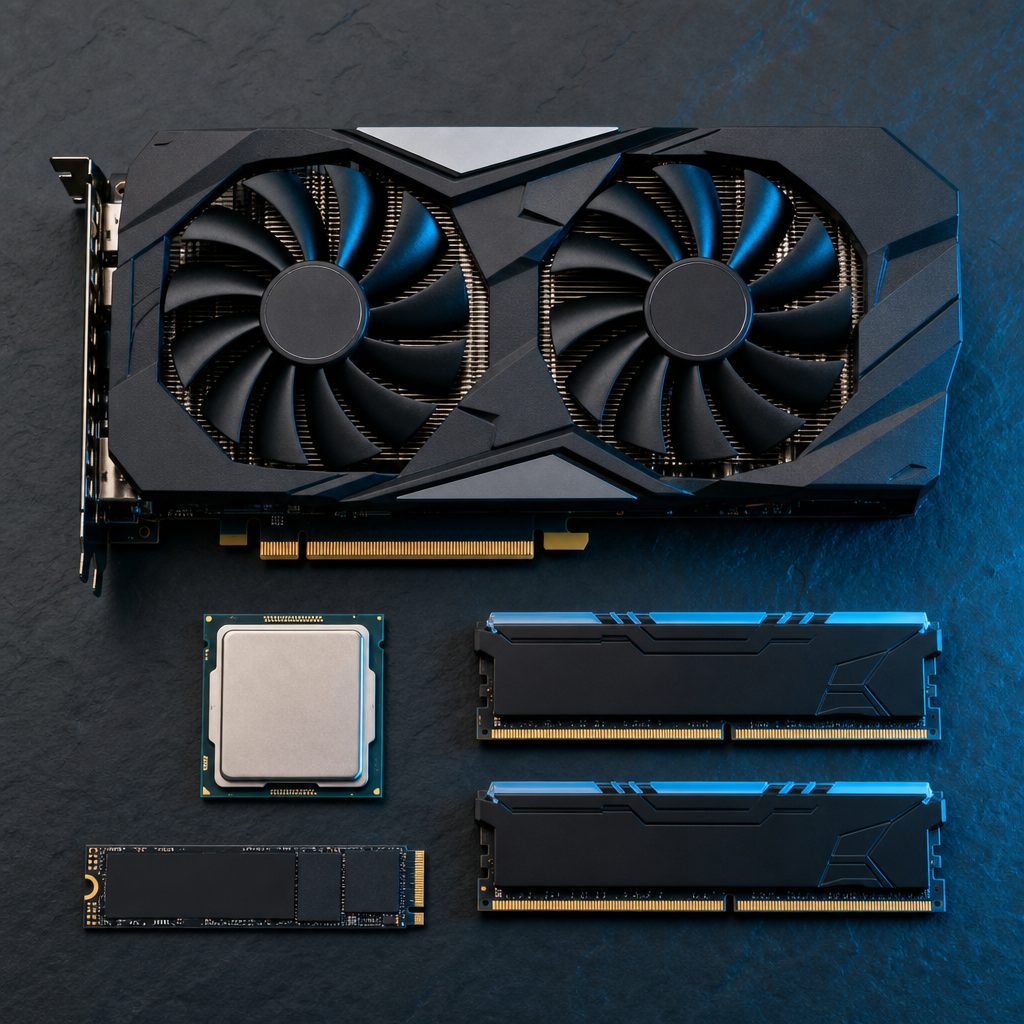
Deciding whether a PC can handle modern games, or working out what to buy next, comes down to matching a handful of hardware components to a target resolution and frame rate. The good news is that the rules are simpler than the marketing makes them look. A small number of parts do most of the heavy lifting, and once their roles are clear, reading a game’s system requirements stops feeling like guesswork. This guide breaks down what each component does, how to interpret minimum versus recommended specs, what hardware tier suits each resolution, and how to check what is already inside a machine before spending anything.
How to Read Minimum vs Recommended Specs
Almost every game lists two sets of requirements, and understanding the difference between them prevents both wasted money and disappointment. The two tiers describe very different experiences.
- Minimum specs describe the hardware needed to launch the game and run it at all. In practice this usually means the lowest resolution, the lowest graphics preset, and a frame rate that is playable but not smooth. Hitting only the minimum often results in roughly 30 frames per second at 1080p with reduced detail.
- Recommended specs describe the hardware a developer expects will deliver a good experience: typically 1080p at higher settings and a steadier 60 frames per second. This is the tier most buyers should aim for, because it leaves headroom as games grow more demanding over the next few years.
A few important caveats apply. Published requirements rarely state the exact resolution, frame rate, or preset they assume, so two games listing the same “recommended” GPU can perform very differently. Requirements are also estimates from the developer rather than guarantees, and they are sometimes optimistic. Some pages now add a third tier for high refresh rates or 4K, which is helpful for buyers chasing those targets. When in doubt, aim a step above the recommended tier rather than meeting it exactly.
Comparing a specific machine against a specific game is exactly what the checker on this site is built for. Looking up titles like Elden Ring or Cyberpunk 2077 shows both tiers side by side, which makes it easier to judge whether existing hardware clears the bar or needs an upgrade.
What Each Component Does for Gaming
A gaming PC is a team of parts, but they do not contribute equally. Knowing which part limits performance for a given task is the key to spending wisely and avoiding bottlenecks.
Graphics Card (GPU)
The GPU is the single most important component for gaming. It renders every frame, and it has the largest effect on both resolution and frame rate. As a rough rule of thumb, the GPU deserves the biggest share of any gaming budget, because no other upgrade moves the needle as much. A faster graphics card raises frame rates, enables higher resolutions, and unlocks effects such as ray tracing. When a game runs poorly at high settings, the GPU is usually the first suspect.
Processor (CPU)
The CPU handles game logic, physics, artificial intelligence, and feeding instructions to the GPU. Its impact is largest at lower resolutions and very high frame rates, and in simulation-heavy or competitive titles. In a fast-paced shooter such as Counter-Strike 2, where players chase hundreds of frames per second, the CPU can become the limiting factor. In strategy games and large open worlds with dense crowds, it matters too. At 4K with demanding visuals, the CPU matters less because the GPU becomes the bottleneck.
System Memory (RAM)
RAM is short-term working space for the operating system, the game, and any apps running alongside it, such as a browser or chat program. When a system runs low on memory, it falls back to slower storage, which causes stutters and long pauses. RAM does not directly raise frame rates once there is enough of it, but having too little is one of the most common causes of poor performance and hitching.
Video Memory (VRAM)
VRAM is dedicated memory built into the graphics card, separate from system RAM. It stores textures, frame buffers, and other graphics data. Higher resolutions and higher texture settings demand more VRAM. When a card runs out, the symptoms are sudden frame drops, textures that load in late or look blurry, and severe stutter. A card can be fast enough on paper yet still struggle at 1440p or 4K if it is short on VRAM, which is why memory capacity is now a key spec to check, not an afterthought.
Storage (SSD vs HDD)
Storage holds the game files and affects load times, level streaming, and how quickly open worlds render in as the player moves. It does not change frame rate directly, but slow storage causes long loads and texture pop-in. Modern titles increasingly assume a solid-state drive, and some list one as a requirement. More on this below.
Resolution and Frame Rate Targets
Before choosing any hardware, it helps to settle on a target. Resolution is the number of pixels on screen, and frame rate is how many images are drawn each second. Higher numbers in either look better but cost more performance. The three common targets are 1080p, 1440p, and 4K, often paired with a frame rate goal.
- 1080p at 60 fps is the mainstream baseline. It is sharp enough on most monitors, runs well on affordable hardware, and is the resolution most published recommended specs assume.
- 1440p at high refresh (often 120 fps or more) is the sweet spot for many players who want both clarity and smoothness. It needs a stronger GPU and a monitor that supports the higher refresh rate.
- 4K at 60 fps delivers the sharpest image but is the most demanding target by a wide margin. It calls for a high-end GPU with generous VRAM, and a capable CPU to match.
Frame rate matters as much as resolution. A smooth 60 fps feels far better than a choppy 30 fps, and competitive players often prioritise high frame rates over visual detail. Upscaling technologies built into modern GPUs can render a game at a lower internal resolution and reconstruct it to a higher one, which softens the cost of 1440p and 4K considerably. Picking a target first, then matching hardware to it, avoids both overspending and falling short.
Matching GPU Class to Resolution
The table below pairs each resolution tier with the rough class of graphics card that suits it, along with a sensible VRAM floor. These are general guidelines; the exact card needed varies by game and by how high the settings are pushed.
| Target | GPU class | Example cards | VRAM floor |
|---|---|---|---|
| 1080p 60 fps | Entry to mid | RTX 4060, RX 7600, Intel Arc A580 | 8 GB |
| 1440p high refresh | Mid to upper-mid | RTX 4070, RX 7800 XT | 12 GB |
| 4K 60 fps | High end | RTX 4080, RX 7900 XTX | 16 GB |
GPU Tiers by Budget
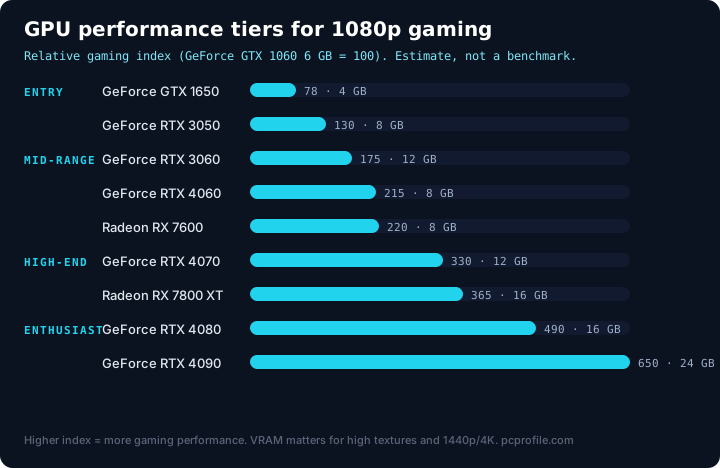
Graphics cards span a wide range, and grouping them into tiers makes the choice manageable. Prices shift constantly, so the sensible way to think about this is in relative terms: entry, mid-range, and high-end. Each tier targets a different resolution and frame rate combination.
Entry Level
Entry cards are built for 1080p gaming at 60 fps with medium to high settings. Current examples include the NVIDIA RTX 4060, the AMD Radeon RX 7600, and Intel’s Arc A-series cards such as the Arc A580. These are the most affordable modern GPUs that still play current titles comfortably at the mainstream resolution. They typically ship with 8 GB of VRAM, which is workable at 1080p but can feel tight in the most demanding new releases at high texture settings. For a player who games at 1080p and does not chase ultra detail, this tier offers the best value.
Mid Range
The mid-range is the most popular tier because it balances cost against capability. Cards such as the NVIDIA RTX 4070 and the AMD Radeon RX 7800 XT comfortably handle 1080p at high frame rates and step up to 1440p at high settings. They generally carry 12 GB or more of VRAM, which gives breathing room at higher resolutions and helps the card stay relevant longer. A title like Baldur’s Gate 3 runs beautifully on this tier, and a demanding open world such as Starfield is well within reach at 1440p. For most buyers who want a machine that lasts several years, this is the tier to target.
High End
High-end cards exist for 4K gaming, very high refresh rates at 1440p, and heavy ray tracing. Examples include the NVIDIA RTX 4080 and the AMD Radeon RX 7900 XTX, with the RTX 4090 sitting at the extreme top. These cards typically carry 16 GB of VRAM or more, which is necessary to drive 4K without running short. The cost premium over the mid-range is steep and the performance gains shrink at lower resolutions, so this tier makes sense mainly for players committed to 4K or to pushing the most graphically intense games to their limits. A visually heavy title such as Cyberpunk 2077 with ray tracing enabled is where this hardware earns its keep.
Pairing a CPU With the GPU
A graphics card cannot reach its potential if the processor cannot keep up. This mismatch is called a bottleneck, and it shows up as a GPU that never reaches full load while frame rates stay lower than expected. The goal is balance: the CPU should be capable enough that the GPU stays the limiting factor in demanding scenes, which is the desirable state for gaming.
General pairing guidance looks like this:
- With an entry GPU, a current-generation six-core processor is plenty. Mainstream chips from the AMD Ryzen 5 and Intel Core i5 families pair well here without overspending.
- With a mid-range GPU, a strong six or eight-core chip keeps the card fed at 1440p. A modern Ryzen 5 or Ryzen 7, or an Intel Core i5 or i7 of recent generation, fits this slot.
- With a high-end GPU, especially for high frame rate or competitive play, a fast eight-core processor such as a recent Ryzen 7 or Intel Core i7 prevents the CPU from holding the card back.
A few practical points help here. At 4K the CPU matters less, because the GPU is doing so much work that a mid-tier processor rarely limits it. At 1080p with a powerful GPU, the opposite is true and the CPU often becomes the ceiling. Competitive shooters and large simulation games lean harder on the CPU than cinematic single-player titles do. AMD’s processors with extra cache, marketed under the X3D label, are particularly well regarded for gaming because that cache benefits many games directly. The aim is not the most expensive CPU, but one matched sensibly to the chosen graphics card and resolution.
How Much RAM Is Enough
System memory is one of the easiest specs to get right, and one of the most common to get wrong by going too low. The amount needed has crept upward as games and operating systems have grown.
- 8 GB is now below the comfortable line for modern gaming. It may launch many titles, but with the operating system and background apps competing for space, it leads to stutter and long pauses in current releases. It is best treated as a bare minimum, not a target.
- 16 GB is the modern baseline and the right choice for the vast majority of gamers. It comfortably runs current games alongside a browser, chat, and streaming software, and it is what most recommended specs now call for. A new build or upgrade should not go below this.
- 32 GB is useful for the most demanding new titles, for heavy multitasking, and for players who also stream, edit video, or run virtual machines. For pure gaming it offers headroom rather than a big jump in frame rate, so it is sensible insurance rather than a requirement for most.
Two details improve results without adding much cost. Installing memory in a matched pair rather than a single stick enables dual-channel operation, which meaningfully helps gaming performance. And memory speed matters more on AMD platforms than it once did, so choosing a kit at the speed the motherboard supports is worth a moment of attention. Beyond getting the capacity right, RAM is rarely the part worth obsessing over.
SSD vs HDD: Storage for Gaming
Storage choice has shifted from a minor detail to something developers now build around. The difference between a hard disk drive and a solid-state drive is large and easy to feel.
A traditional hard disk drive (HDD) uses spinning platters and is slow by modern standards. Games installed on one suffer long load times and, in open-world titles, visible texture pop-in as the world streams in behind the player. A solid-state drive (SSD) has no moving parts and is dramatically faster, cutting load times sharply and smoothing out streaming. Within SSDs, NVMe drives that plug directly into the motherboard are faster again than older SATA models, though for most games the jump from any HDD to any SSD is the one that truly matters.
Several recent games list an SSD in their requirements rather than as an optional extra, because their engines stream data continuously and assume fast storage. A practical setup is to install the operating system and the games that are actively being played on an SSD, and use a larger HDD, if present, for archival storage and files that are not performance sensitive. Given how affordable solid-state storage has become relative to the experience it delivers, an SSD is one of the highest-impact upgrades for any older machine. A demanding open world such as Grand Theft Auto V loads far faster from an SSD, and the difference is obvious from the first session.
How to Find Out What Hardware You Already Have
Before buying anything, it is worth knowing exactly what is already installed. Windows includes several built-in tools that reveal this in a minute or two, no extra software required.
DirectX Diagnostic Tool (dxdiag)
Pressing the Windows key plus R, typing dxdiag, and pressing Enter opens the DirectX Diagnostic Tool. The System tab lists the processor and total system memory, while the Display tab shows the graphics card and its dedicated video memory. This is the quickest way to see the GPU and how much VRAM it has.
Task Manager
Right-clicking the taskbar and opening Task Manager, then selecting the Performance tab, shows live readings for the CPU, memory, disk, and GPU. It identifies the exact processor and graphics card by name, reports total installed RAM and its speed, and indicates whether a drive is an SSD or an HDD. Watching these readings while a game runs also reveals which component is working hardest, which helps diagnose a bottleneck.
Settings, System, About
Opening Settings, then System, then About gives a clean summary of the processor, installed RAM, the system type, and the Windows edition. It is the simplest starting point for anyone who finds the other tools intimidating.
Use the Checker on This Site
Once the hardware is known, comparing it against a specific game is the next step, and that is exactly what the compatibility checker on this site does. Entering a machine’s components and selecting a title shows whether the system clears the minimum and recommended bars, and where it falls short. Browsing the game library is a good way to test a build against several titles at once, from lightweight competitive shooters to the most demanding open worlds, and to see at a glance whether an upgrade is actually needed.
Putting It All Together
A sensible approach follows a clear order. First, pick a target resolution and frame rate, because everything else flows from that choice. Second, choose a graphics card in the tier that matches the target, since the GPU has the biggest single effect on gaming performance. Third, pair it with a CPU strong enough to keep it fed without overspending on cores that gaming will not use. Fourth, fit at least 16 GB of RAM in a matched pair, and install games on an SSD. Finally, check the result against the games that actually matter to the player rather than against a generic benchmark.
For most people, the best value lands in the mid-range: a current mid-tier GPU, a recent six or eight-core CPU, 16 GB of dual-channel memory, and a solid-state drive. That combination handles 1080p effortlessly, reaches 1440p at high settings, and stays capable for several years. Buyers chasing 4K or very high refresh rates should step up the GPU and CPU together and budget for 16 GB or more of VRAM and 32 GB of system memory. Whatever the budget, the principle holds: match the hardware to the resolution and frame rate target, get the basics right, and confirm the choice against the specific games on the wishlist before committing. Checking a few titles in the game library turns all of this theory into a clear yes or no for any given machine.